Access the Article Manager
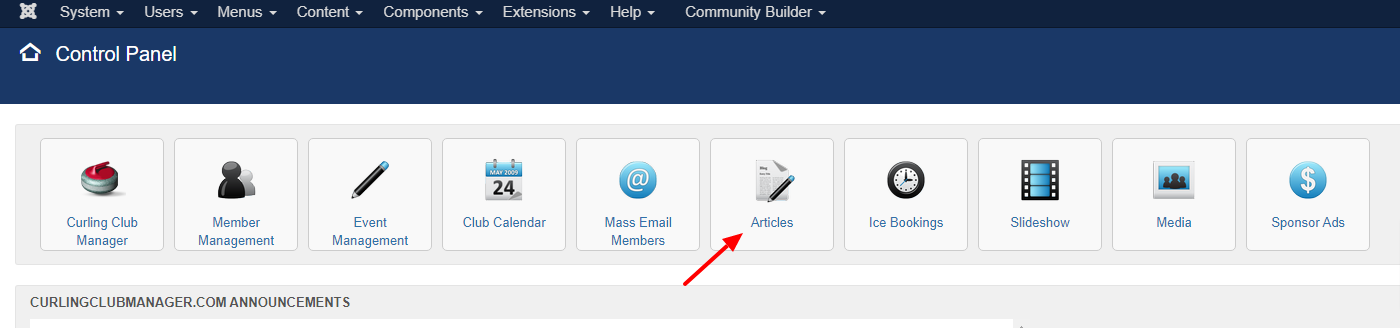
To access the Article Manager, you need to log into your website as administrator. Navigate to the icon called Articles.
Create Articles
Once you access the Article Manager, you can edit all articles on your website the way you like. Let us teach you how to create a new article first. Start by clicking on the New button at the top-left corner of the screen.

Edit the following options:
- Title - Enter a title for your new article.
- Content - Enter the actual content of the new article. Text, images, links, etc.
- Publishing - This allows you to set a date when the article is created, meta description and keywords, author, etc.
- Images and Links - This allows you to specify an intro image for your article, full article image, etc.
- Options - Use different layout for the new article or set an image for it.
- Configure Edit Screen - Set the editing options for your article, when in edit view.
- Permissions - Set different permissions for the new article.

When you are ready with your new article, simply click on the Save & Close button to create it.
Edit Articles
You can also edit already existing articles on your website. To do so, access the Article Manager, tick the checkbox next to the article you want to modify and click on the Edit button at the top.
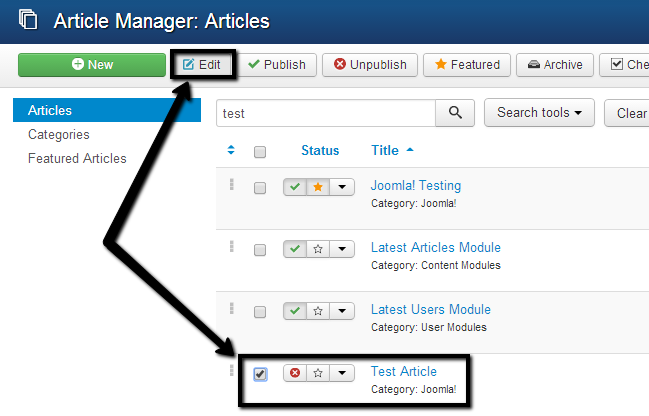
From the new panel, you will be able to edit all options for that article the same way as when you are first creating it.

Click on the Save & Close button to keep the changes.
Publish Articles
To make an article visible for your readers on the front-end of your website, you need to access the Article Manager, tick the checkbox next to the article and click on the Publish button at the top.

Unpublish and Delete articles
In order to unpublish an article, or make it invisible on the front-end of your website, just access the Article Manager, select the checkbox next to the article that you wish to unpublish and click the Unpublish button at the top.
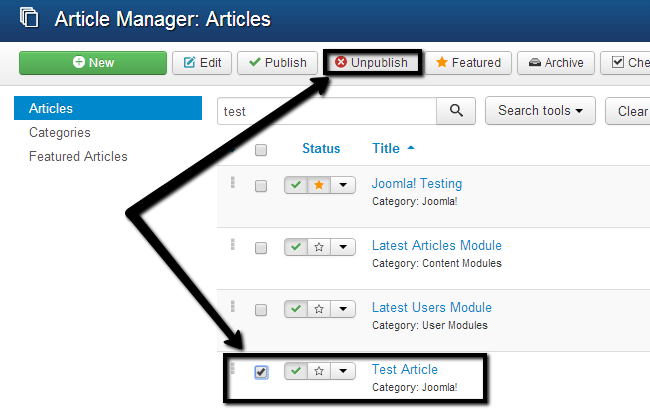
If you would like to remove an article from your website, we suggest you unpublish it first. Then, if it is no longer needed, you can proceed further by deleting it. To do so, access the Article Manager, select the checkbox next to your article and click on the Trash button at the top.
Note that your content will still be available for re-use in your Trash and you can restore it at a later point and re-edit or publish it. On the other hand, if you want to permanently delete an article, just empty the Trash.
0 Comments